
How will I know if the DIMO Macaron is sending data?Updated 8 months ago
If you're unsure whether your DIMO Macaron is actively sending data, here are a few ways to check and troubleshoot:
✅ 1. Check Your App for Connection Status
Open the DIMO Mobile app and go to the Garage tab.
- Tap on your vehicle.
- Look for the "Last Connection" timestamp under the vehicle name.
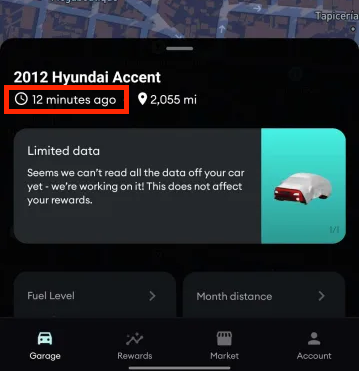
⚠️ Note: If you're using a SmartCar connection alongside the DIMO Macaron, this timestamp might reflect that integration instead of the Macaron.
To verify the Macaron specifically:
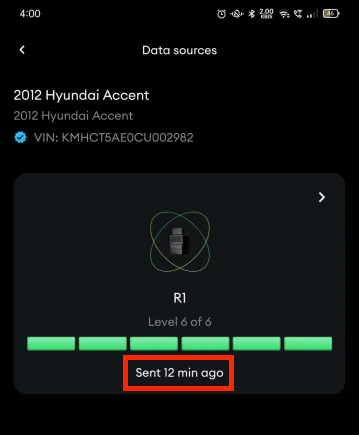
- From the vehicle page, scroll down and tap Data Sources
- Select your device from the list
- Review the last connection timestamp, and device details
🔋 2. Check the Device Lights
- With the vehicle powered on, the device lights should remain on. Check for a Blue and Red/Green light.
- If the lights turn off shortly after, the vehicle battery may be low, causing the Macaron to enter sleep mode.
To reset the sleep timer:
- Unplug the Macaron for at least one full minute
- Plug it back in while the vehicle is powered on and in an area with good Helium coverage
📡 3. Confirm Helium Network Coverage
The Macaron requires Helium hotspot coverage to send data. If it doesn’t detect a hotspot for a while, it may go into sleep mode.
- Visit https://world.helium.com/en/iot/hotspots to check coverage in your area
- Green hexagons on the map represent active Helium hotspots
Make sure you’re driving through areas with Helium coverage and that the drive is long enough for the Macaron to complete a data upload.
🛠️ Still having trouble?
If you think your Macaron is still not sending data, contact our support team at [email protected] and include:
- Your vehicle’s VIN
- A photo of the device's serial number
- Your vehicle's battery level, if you know it
- Your order number for the device
We’ll take a closer look and help you get connected.